How to Choose the Right Monitor

The monitor is one of the most underestimated components in a computer setup, yet it is the primary interface between the user and the machine. While CPUs and GPUs determine what a system can do, the monitor defines how that work is experienced. A poor display can undermine even the most powerful hardware, while the right monitor can dramatically improve productivity, immersion, and visual comfort.
- Choosing the right monitor requires understanding how resolution
- panel technology
- refresh rate
- color accuracy
- use case interact. This guide explains how to make an informed decision in 2026
- based on real-world needs rather than marketing claims.
Define Your Primary Use Case First
Before comparing specifications, it is critical to identify how the monitor will be used.
Common use cases include:
- Office productivity and multitasking
- Content creation and professional color work
- Gaming and esports
- Mixed-use environments
Each use case prioritizes different features. A gaming monitor optimized for high refresh rates may perform poorly for color-critical work, while a professional display may feel sluggish in fast-paced games.
Screen Size and Viewing Distance
- Monitor size affects ergonomics
- immersion
- productivity.
General guidelines:
- Ultrawide (34–49 inches): Excellent for multitasking and simulation
27 inches: Sweet spot for 1440p
32 inches: Best for 4K and immersive workflows
Ultrawide (34–49 inches): Excellent for multitasking and simulation
Viewing distance matters. Larger screens require greater distance to avoid eye strain and maintain clarity.
Resolution: Sharpness vs Performance
Resolution determines pixel density and visual clarity.
Common resolutions include:
- Refresh Rate: Smoothness Matters
1440p (QHD): Balanced clarity and performance
4K (UHD): Exceptional detail, higher GPU demand
Higher resolution improves text sharpness and workspace area but increases GPU workload. For gaming, resolution choice should align with GPU capability.
Refresh Rate: Smoothness Matters
Refresh rate defines how many times per second the display updates.
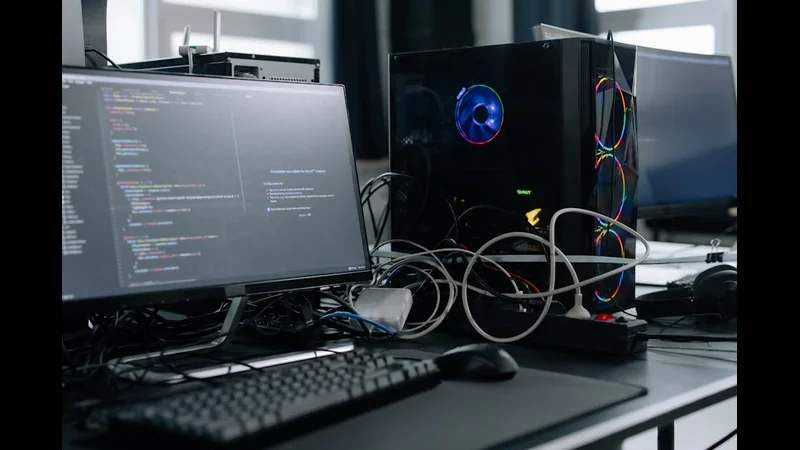
60Hz: Standard for office work
120–165Hz: Ideal for smooth gaming and general use
240Hz+: Competitive esports
Higher refresh rates improve motion clarity and responsiveness—not just in games, but also during everyday tasks like scrolling and window movement.
Panel Technology Explained
Panel type significantly affects image quality and performance.
IPS:
- Excellent color accuracy
- Wide viewing angles
- Slightly slower response times
- VA:
- High contrast ratios
- Deeper blacks
- Moderate response times
- TN:
- Fastest response times
- Poor color and viewing angles
- OLED:
- Perfect blacks
- Instant response times
- Risk of burn-in with static content
For most users, IPS remains the best all-around choice, while OLED is emerging as the premium option.
Color Accuracy and Professional Use
For creative professionals, color accuracy is non-negotiable.
Key metrics include:
- DCI-P3 support
- Delta E values
- Factory calibration
Factory calibration
- Monitors designed for photography
- video editing
- design should prioritize accuracy over refresh rate.
HDR: Real or Marketing?
HDR quality varies widely. True HDR requires:
- High peak brightness
- Local dimming or OLED pixels
- Wide color gamut
Many monitors advertise HDR support but lack the hardware to deliver meaningful results. Verify specifications carefully.
Response Time and Motion Handling
Response time affects motion clarity and ghosting.
Lower response times are critical for gaming but less important for productivity. Overdrive settings must be tuned carefully to avoid artifacts.
Adaptive Sync Technologies
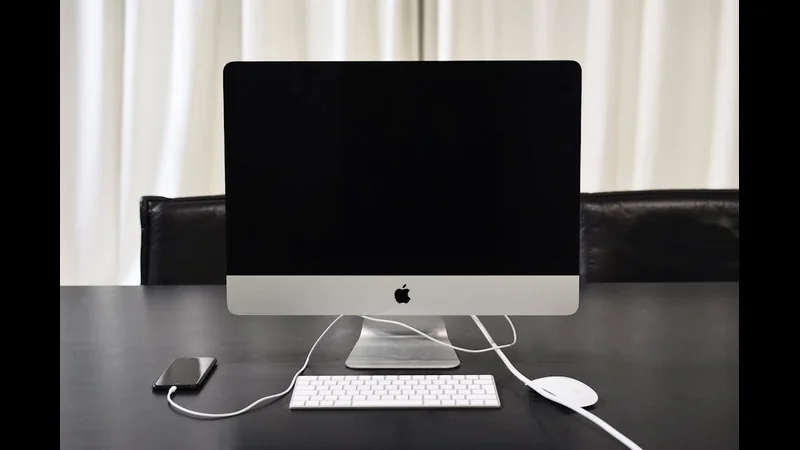
Adaptive sync prevents screen tearing and stuttering.
Common standards include:
- NVIDIA G-Sync
- AMD FreeSync
- VESA Adaptive Sync
Choosing a monitor compatible with your GPU ensures smoother gameplay.
Connectivity and Ergonomics
Practical features matter more than raw specs.
Look for:
- DisplayPort and HDMI support
- USB-C with power delivery
- Adjustable stands
- VESA mounting compatibility
Ergonomic adjustments reduce strain during long sessions.
Eye Comfort and Long-Term Use
Long-term comfort features include:
- Flicker-free backlighting
- Low blue light modes
- Matte screen coatings
These features improve usability for extended workdays.
Matching the Monitor to Your Hardware
A monitor should complement system capabilities.
High refresh rate monitors require strong GPUs
4K displays demand high VRAM capacity
Color-accurate panels benefit from calibration tools
Overspending on features your hardware cannot use offers little benefit.
FAQ
Is 4K worth it for gaming?
Only with a powerful GPU.
Do higher refresh rates help productivity?
Yes—motion feels smoother and reduces eye strain.
Is OLED safe for desktop use?
Generally yes, but static content should be managed carefully.
Should I choose ultrawide?
For multitasking and immersion, yes.
Does monitor quality affect performance perception?
Absolutely—display quality strongly influences perceived system speed.
Conclusion
Choosing the right monitor is about aligning display technology with real-world needs. Resolution, refresh rate, panel type, and color accuracy each play distinct roles in shaping the user experience. In many cases, upgrading the monitor delivers more noticeable improvements than upgrading internal components.
A well-chosen display enhances productivity, improves comfort, and unlocks the full potential of your system—making it one of the most impactful investments in any setup.